
V1 SCRIPT WORKFLOW: These steps describe the earlier TradeSmart V1 alert format and third-party connection process, not Premium V2 automation. Provider screens and requirements may have changed. Check the current provider instructions and paper-test entry, exit, position size and emergency close before any live use. For a V2 script, use the V2 automation guides.
1️⃣ How to use TradeSmart ATR GOD Strategy with PineConnector?
Important
If you have any issues during the process, you can always check out PineConnector’s Errors and Solutions page.
Step 1
Ensure that you are Using a Compatible Operating System.
PineConnector is compatible with the following Operating Systems:
- MacOS
- Windows 10 and 11
- Windows Server 2016, 2019 and 2022
Step 2
First, you need to register for PineConnector.
Step 3
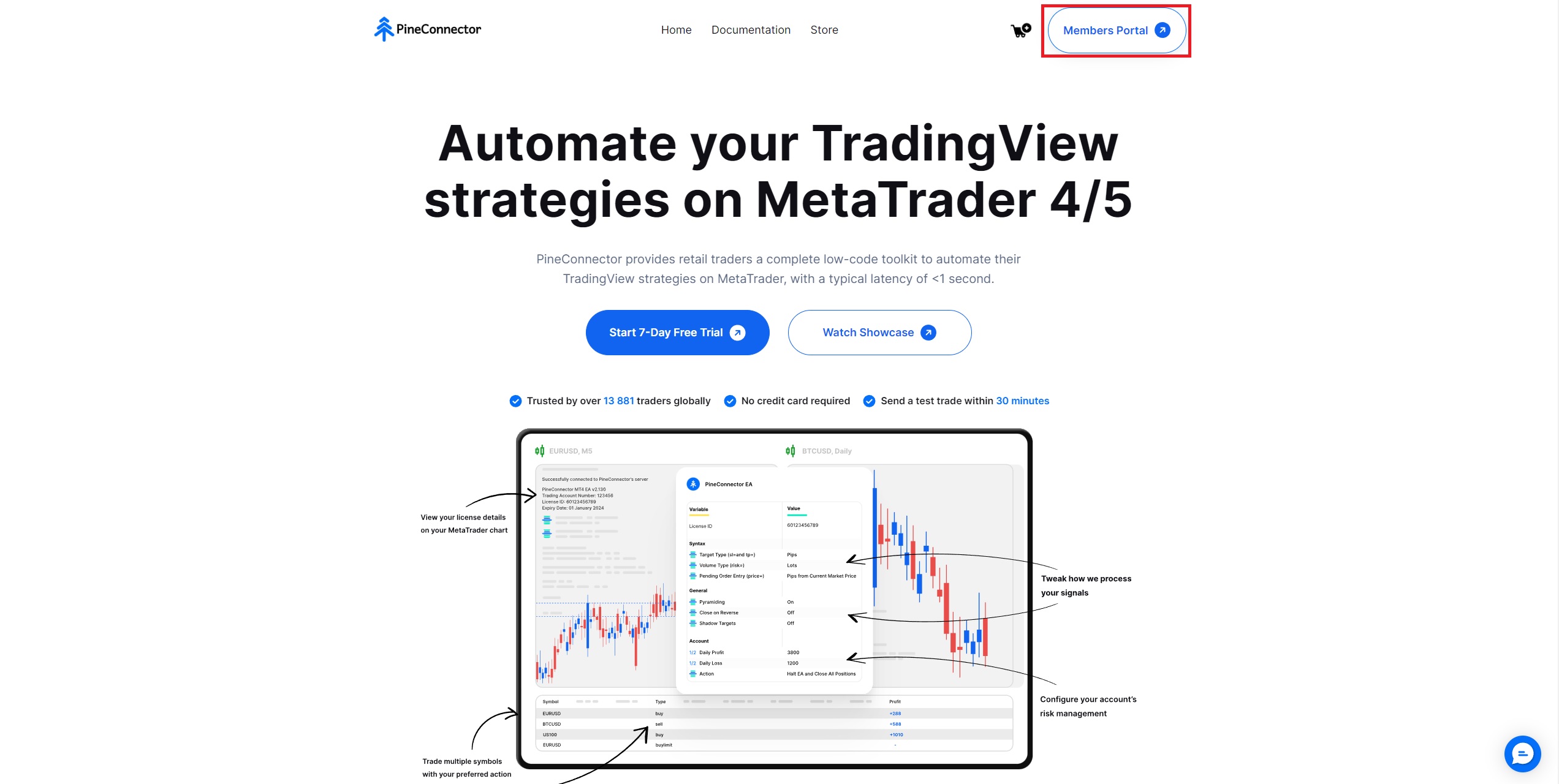
Once you are logged in click the “Members Portal” button in the top right corner.
Step 4
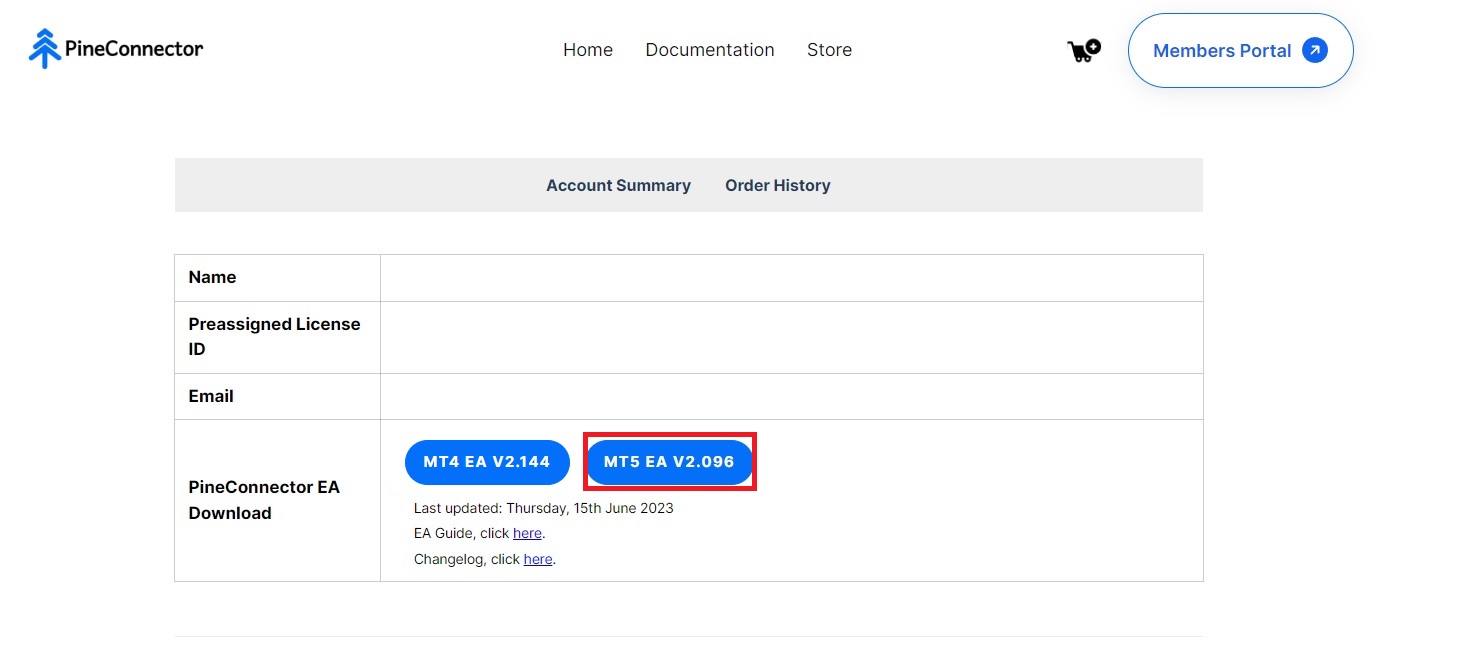
Next, click the MT5 button, this downloads the PineconnectorEA file that you will have to use later in Step 6.
Also save your preassigned License ID, you will need this in Step 10.
Step 5
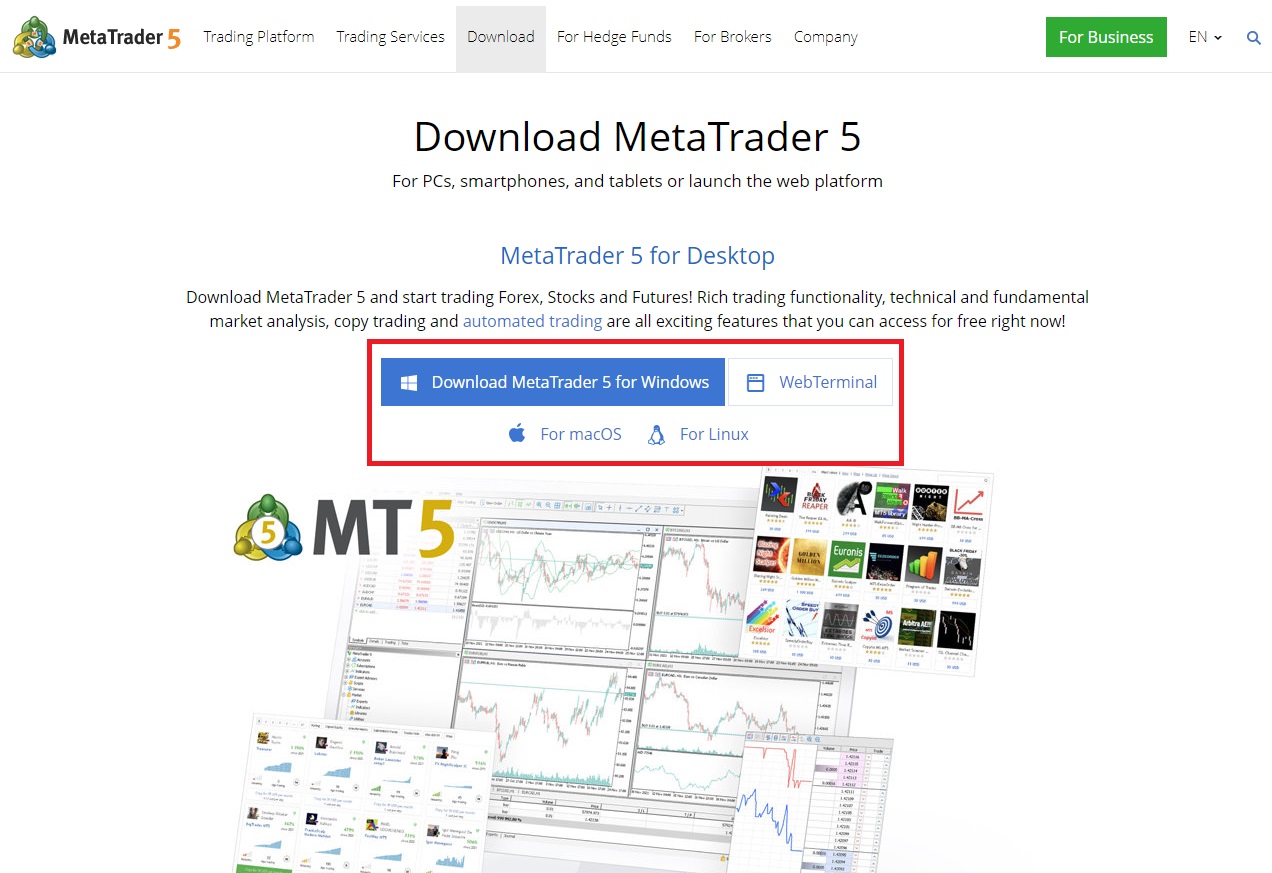
If you do not have Metatrader5 installed, click the link here, and download the one fitting your operating system, or follow the instructions of your broker.
Step 6
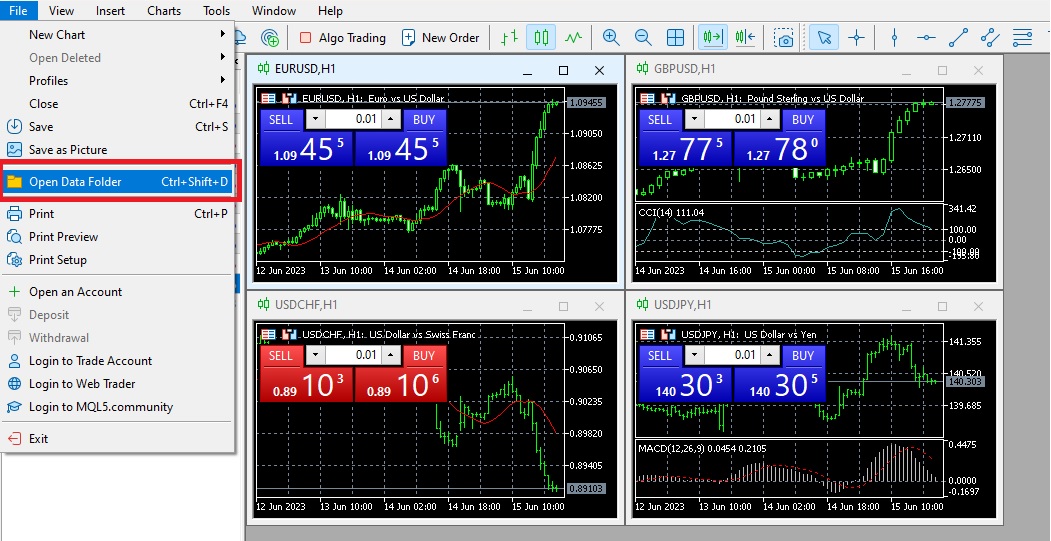
Once Metatrader5 is installed open it and click “File” → “Open Data Folder”.
Step 7
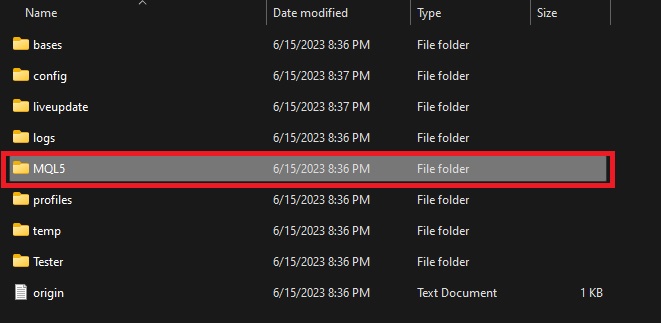
In your Data Folder, click on “MQL5”.
In your MQL5 folder, click on “Experts”.
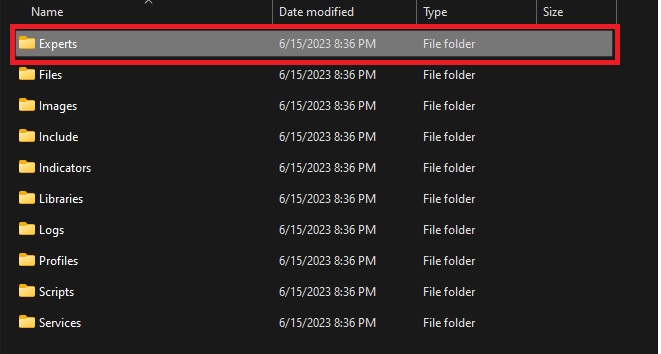
In your Experts folder, paste the PineConnector EA that you have downloaded in Step 4.
Step 8
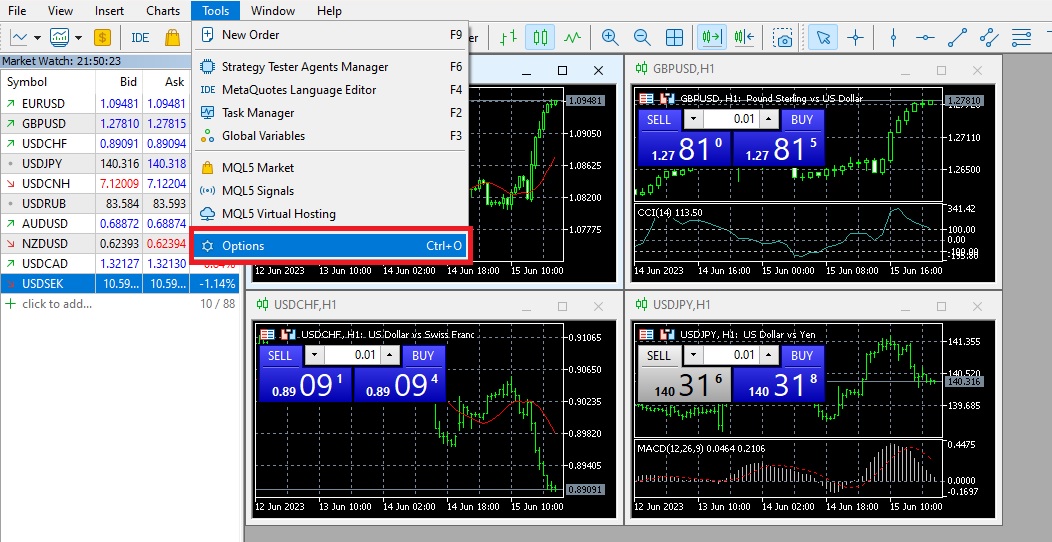
At the top of your MetaTrader 5, click “Tools” → “Options”.
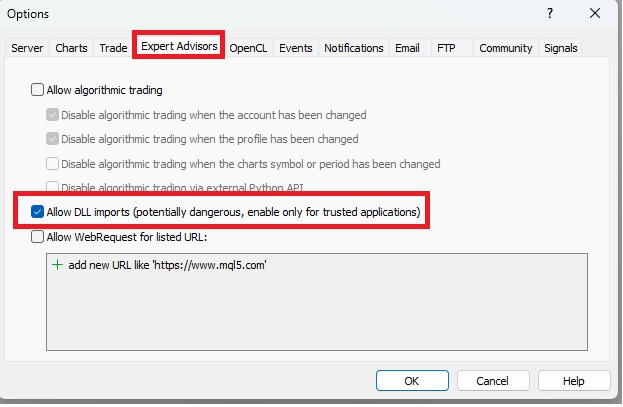
Then click “Expert Advisor” and tick “Allow DLL Imports” and “OK”.
Step 9
At the top of your screen, ensure that “Algo Trading” is in green.
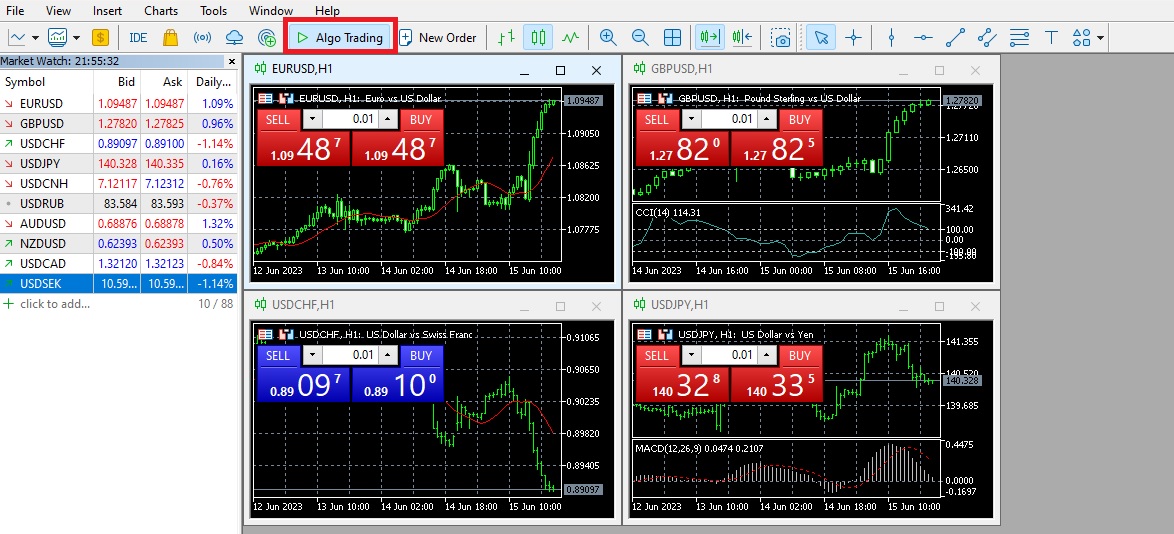
Step 10
Open Navigator by pressing “Ctrl+N” → Right click on “Expert Advisors” → Click “Refresh”.
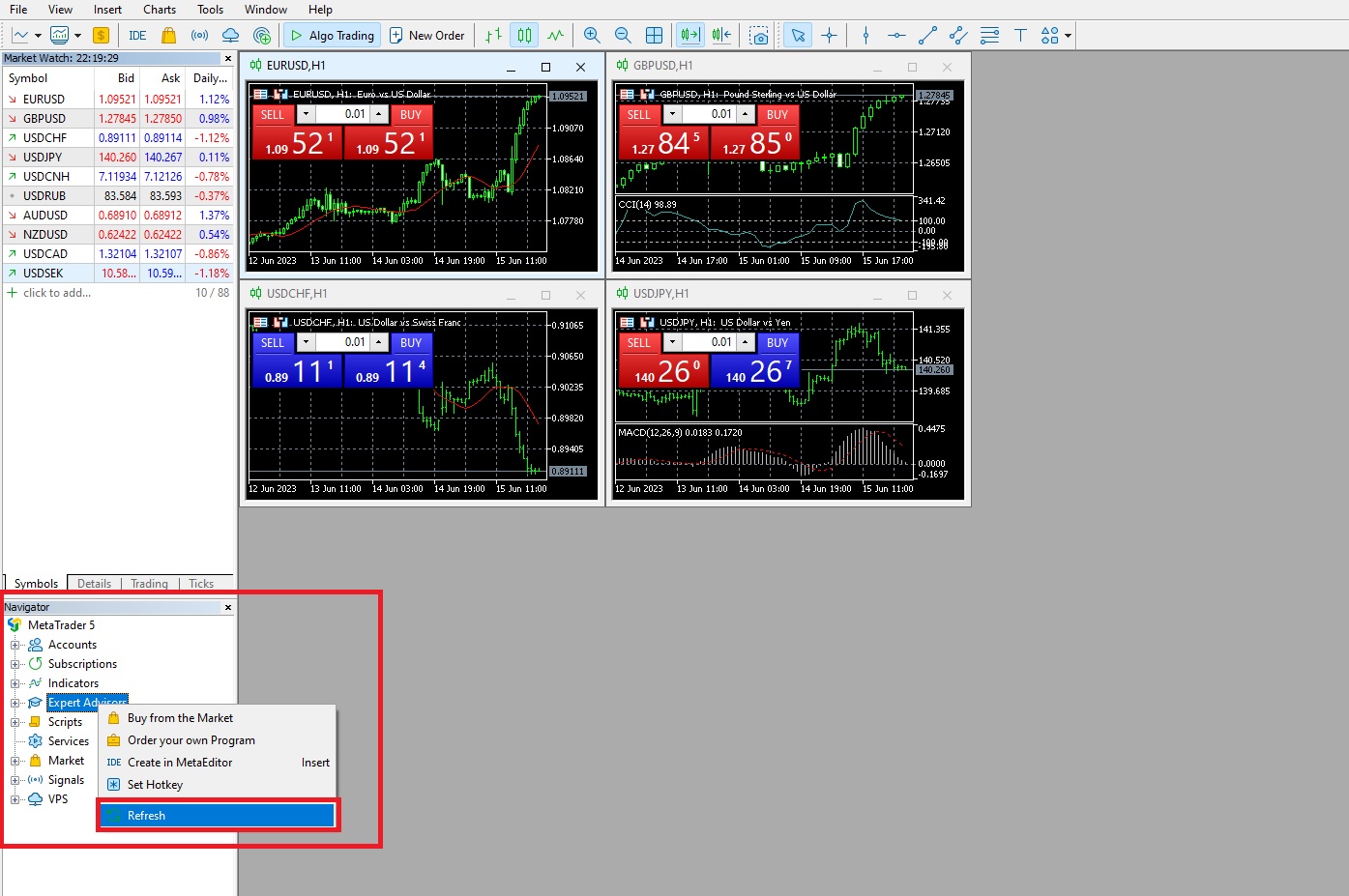
Safety warning
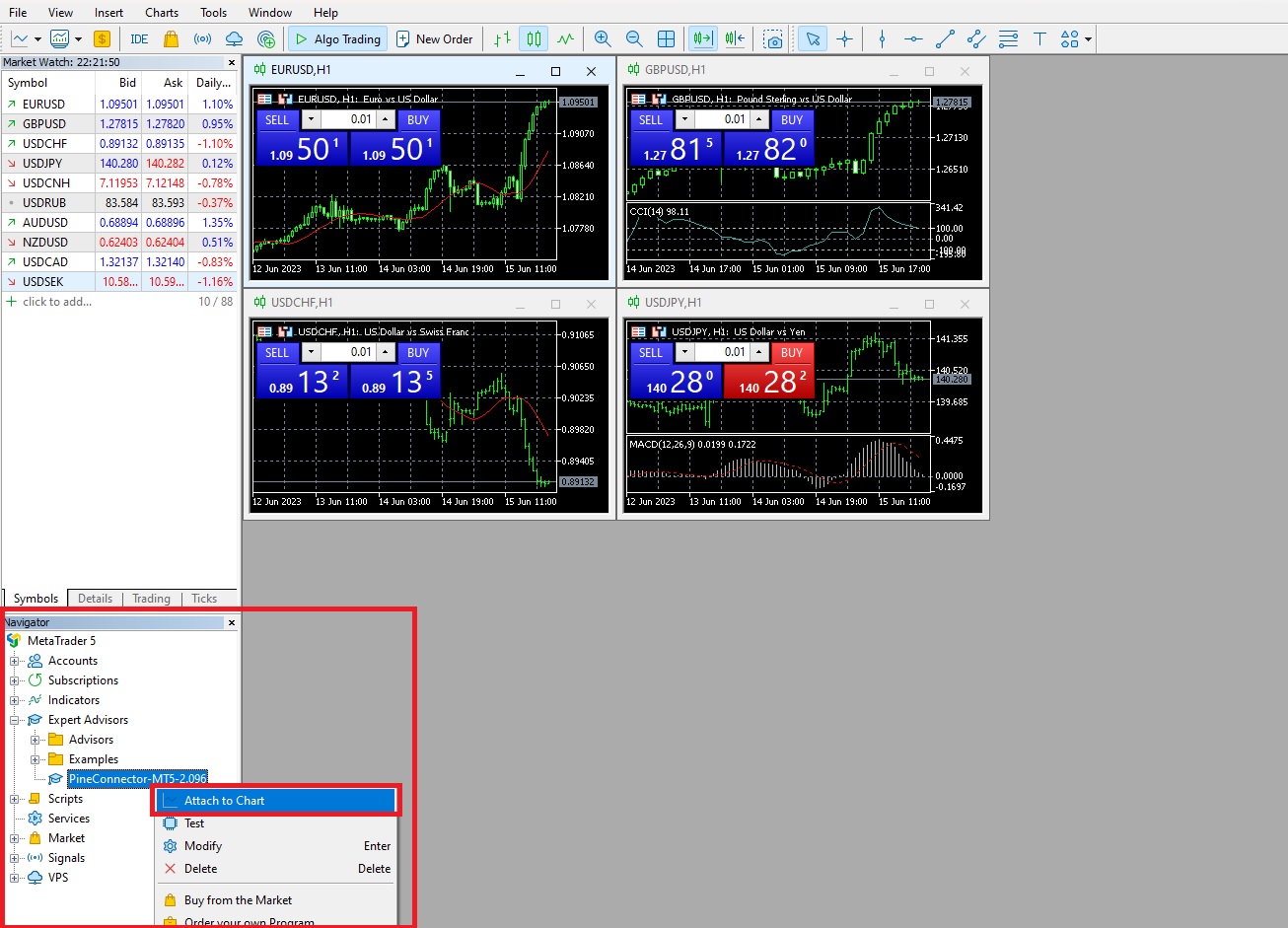
The chart symbol has to be the same as the one you use on Tradingview, otherwise the strategy won’t work.
Right click on the PineConnector MT5 EA and click “Attach to Chart”.
Under the “Common” tab, tick “Allow Algo Trading”.
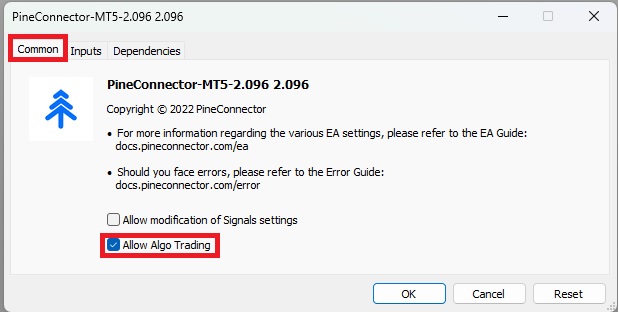
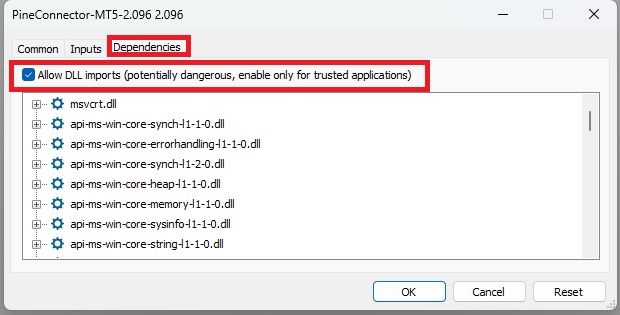
Under “Dependencies”, tick “Allow DLL imports”.
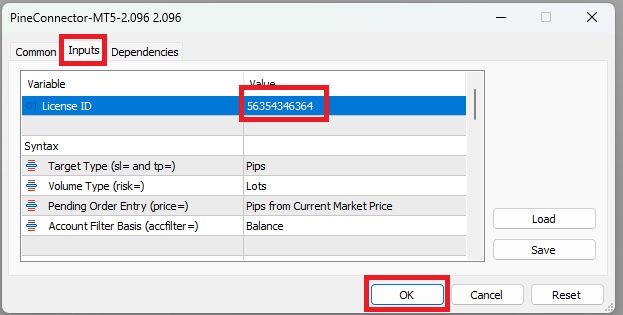
Under “Inputs”, add your Pineconnector License ID, which you saved Step 4, then click “OK”.
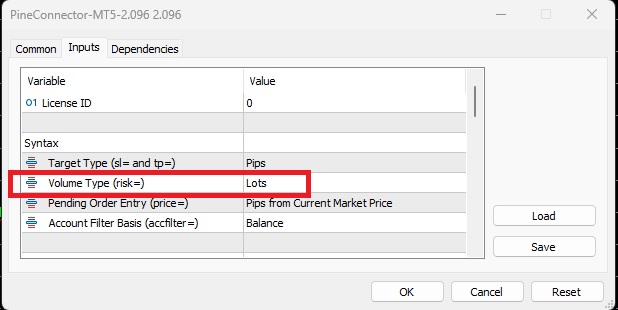
Here you can also set the volume type, which is the has the following options:
- Lots
- Indicating “risk=1” will mean 1 volume/lot will be opened
- Dollar Amount
- The amount that you will lose if your trade hits the specified SL
- If you have an EURUSD trade with 15 pip SL with $1000, risk=1 with this Volume Type will mean that hitting the SL you will lose $10
- Percentage of Balance, Lots
- Using “risk=1”,
- 0.1 lot will open on a $1000 account
- 1 lot will open on a $10,000 account
- 10 lots will open on a $100,000 account
- sl= syntax is not required
- Using “risk=1”,
- Percentage of Balance, Margin
- If you set “risk=1” on a $1000 account, it means that opening a position will increase the margin by 1% or $10
- Percentage of Balance, Loss
- Using “risk=1” on a $1000 account translates to you losing 1% or $10 if you were to hit SL
- sl= syntax is required
- Position size will be computed automatically based on the SL specified
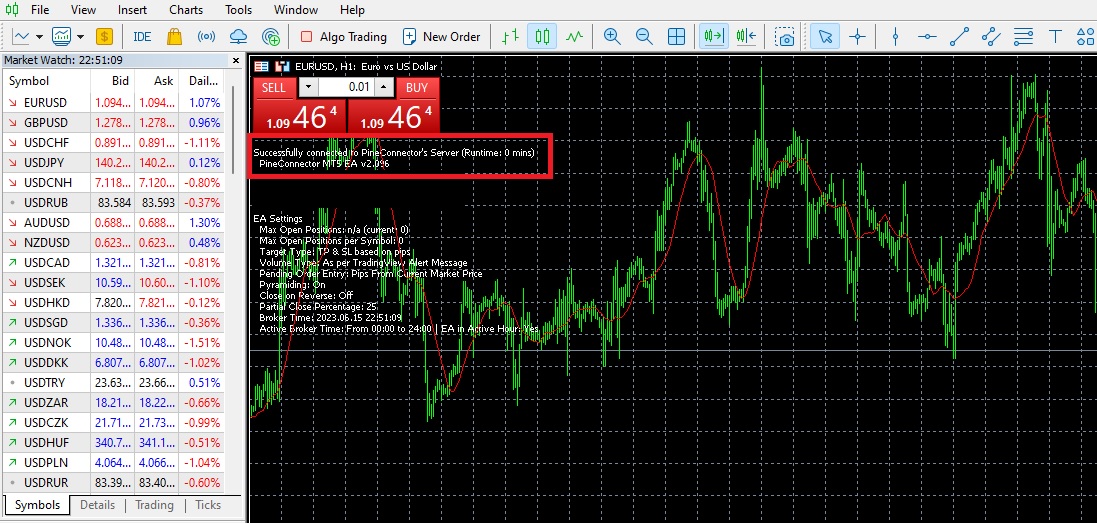
If you did everything correctly, you should see the following screen with the “Successfully connected to PineConnector’s Server” text.
Step 11
Next open up Tradingview in a new window and add “ATR GOD Strategy by TradeSmart” to the chart.
Tip
You can also use PineConnector with our other strategies, you just have to write the PineConnector’s syntax at the bottom of our PREMIUM strategies in the Automation part, you can check out their syntax guide here.
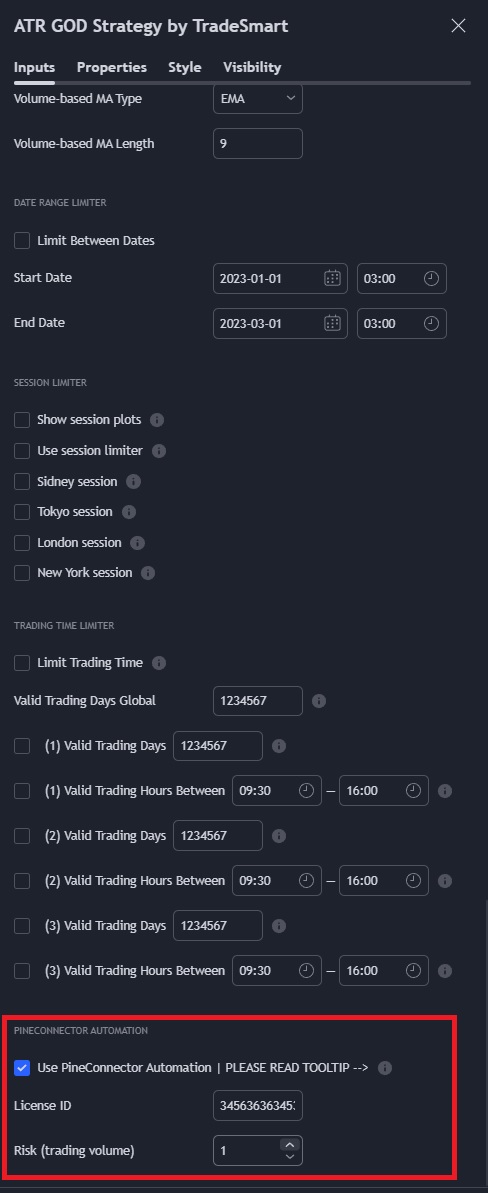
Click the Strategy Settings and scroll down to the bottom.
- Tick “Use Pine Connector Automation”
- Add your License ID from Step 4
- Set your trading volume(Risk) specified in Step 10
Step 12
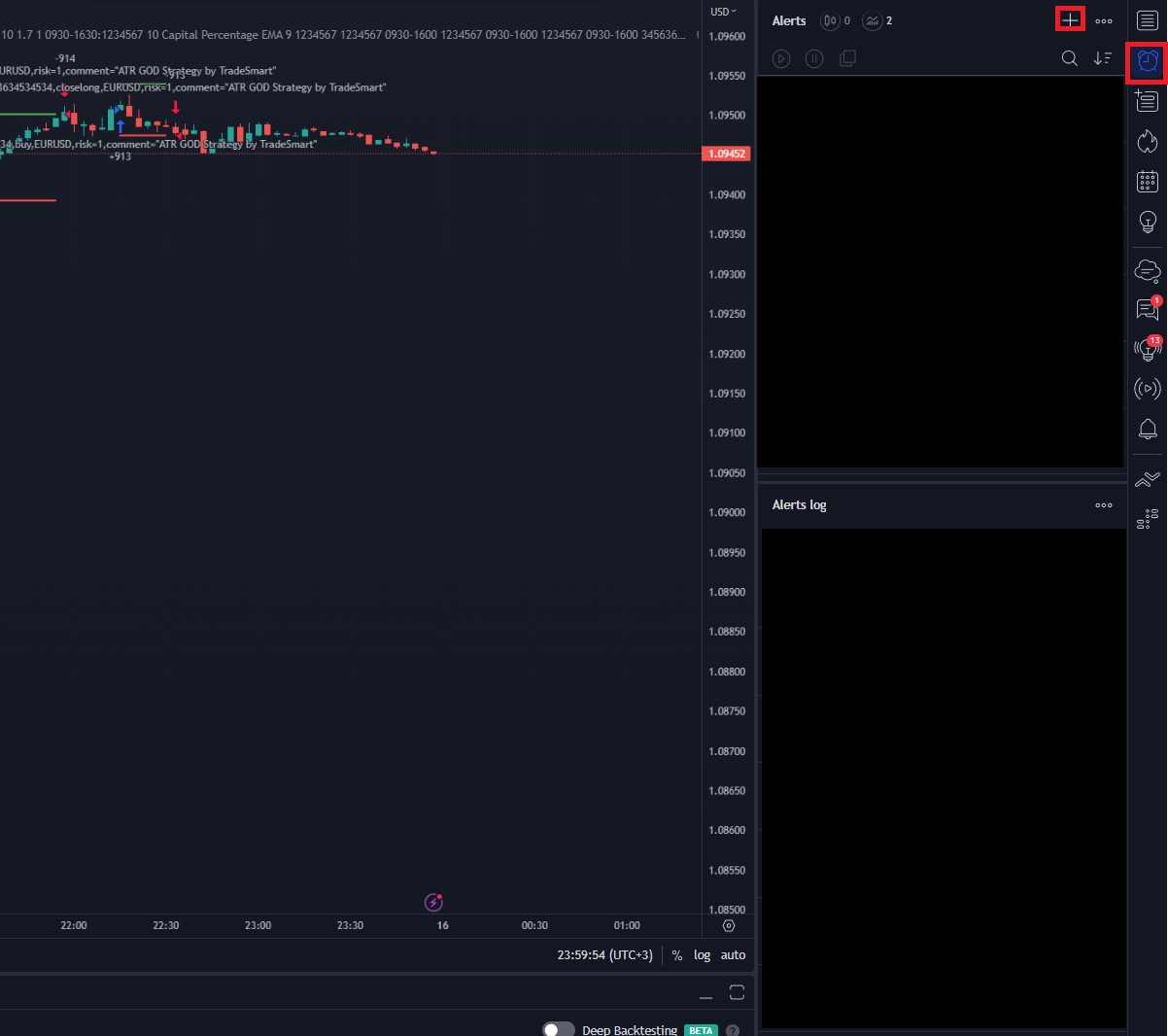
Next in the top right corner click “Alerts” and then “Create Alert”.
For Condition select the ATR GOD Strategy, you can add a name to the alert, and for the message set the following:
{{strategy.order.comment}}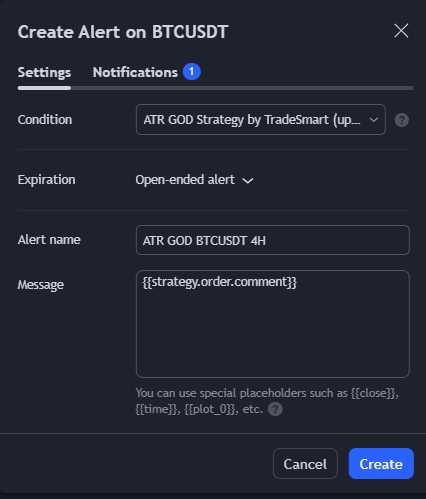
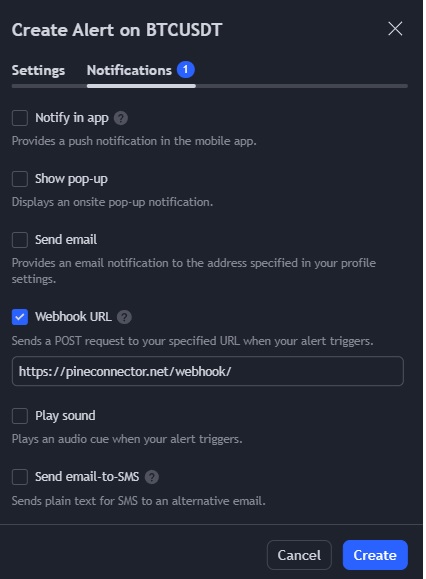
Next click “Notifications”, tick “Webhook URL” and set the text to the following:
https://pineconnector.net/webhook/Then click “Create”
Congratulations! You now have a running script!