
Version check: These steps apply to the workflow described below. Verify your script version and the latest TradingView/provider interface before relying on an old preset, extension or automation alert.
How To Import/Export Tradingview Strategy Settings
Tip
This V1 method used the TradingView Assistant Chrome extension. Check that it is still available, reputable and compatible with your current TradingView setup; the interface or extension permissions may have changed.
Step 1
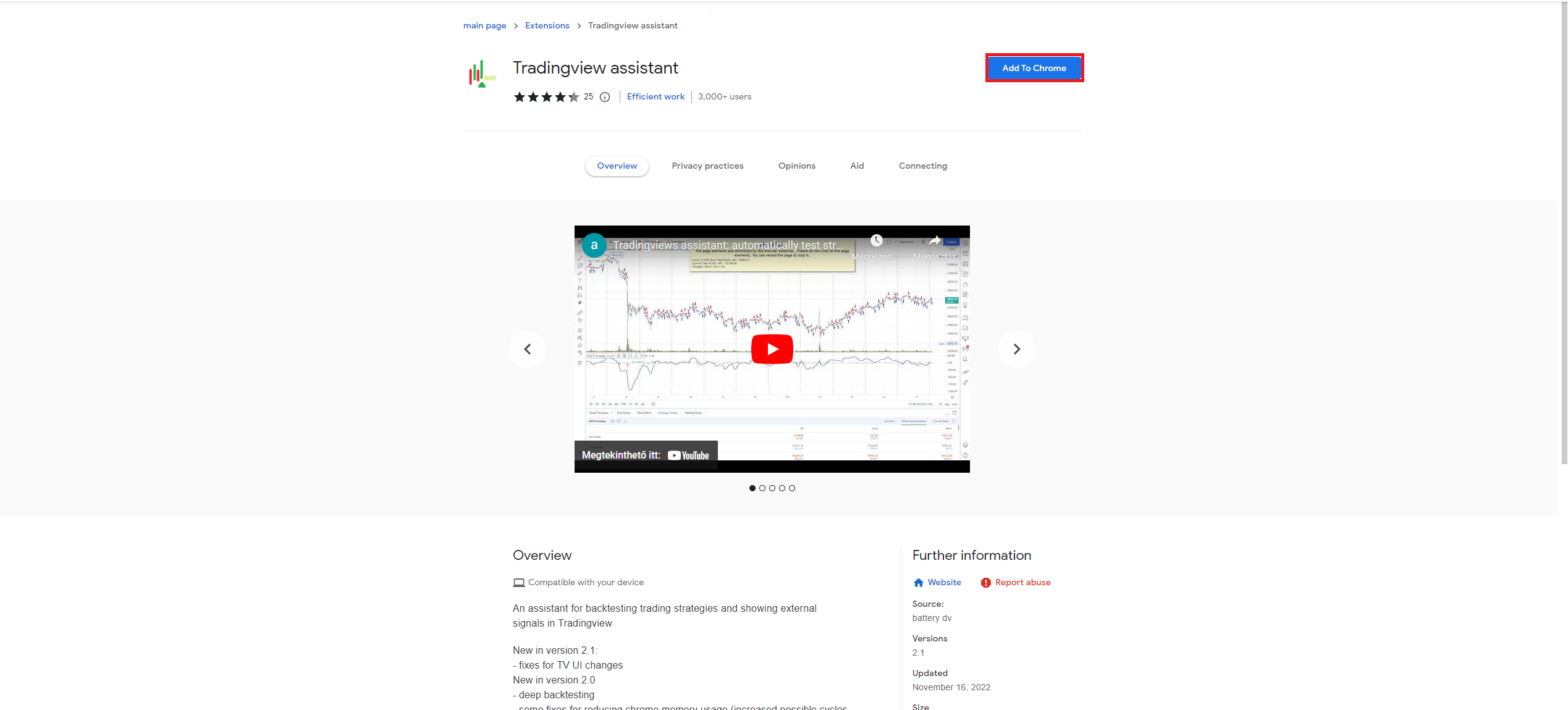
Open the Tradingview Assistant.
Then click the “Add To Chrome” button.
Step 2
Now, if you open up the strategy settings in Tradingview, at the bottom, you will see an export and import button.
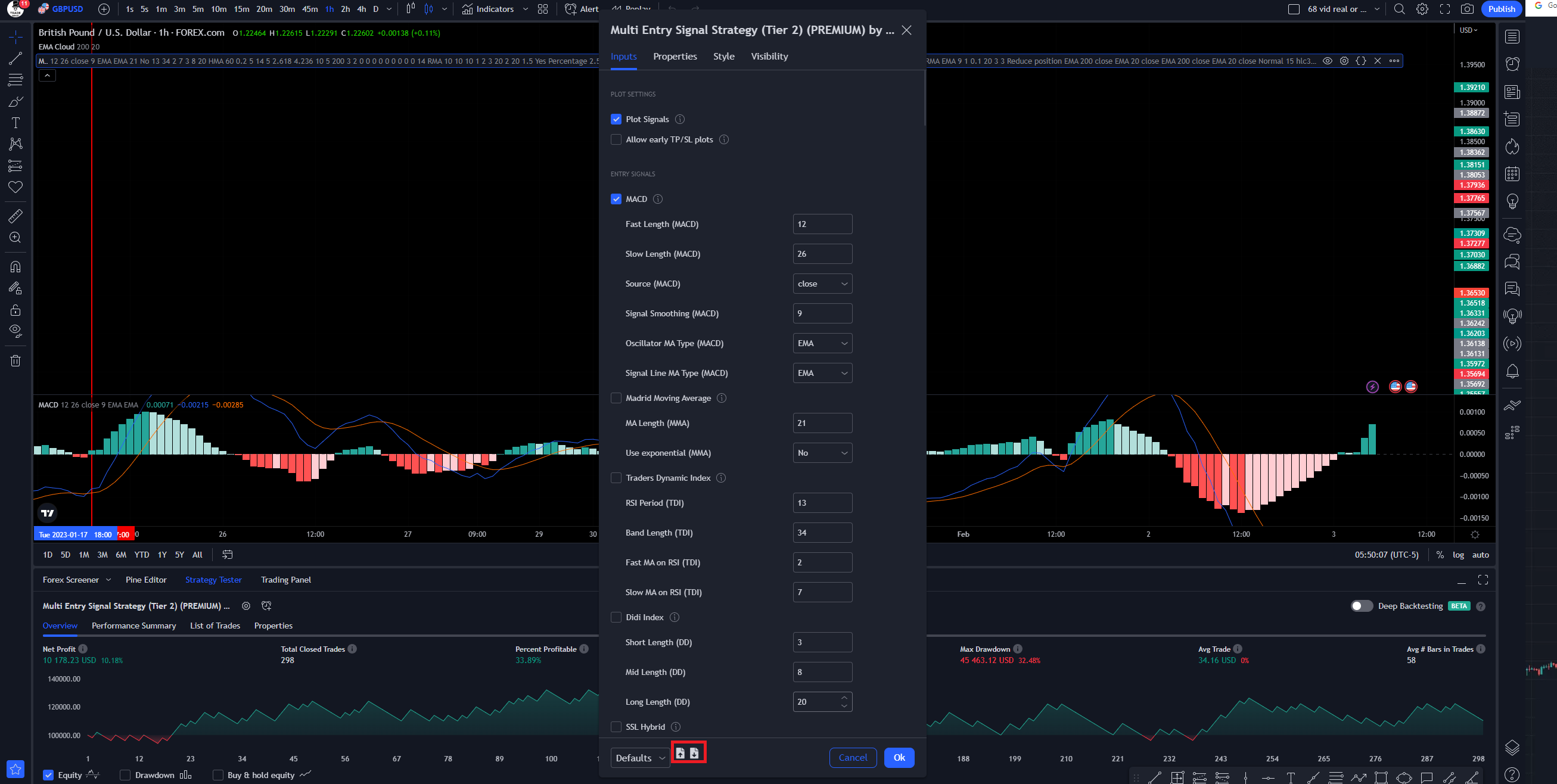
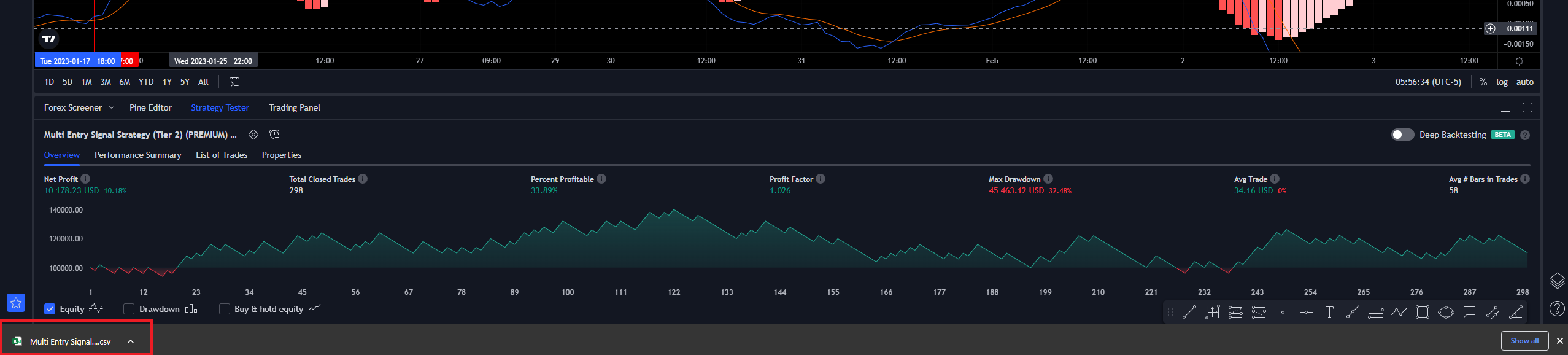
If you click on the right button (export), you will download a CSV file that contains data for the strategy settings.
Tip
Avoid editing the CSV in spreadsheet software: it may change separators, formatting or encodings and prevent re-import. You may keep a separate backup of the unmodified file.
Step 3
Now, you can send the downloaded file to others. To import the file, click on the left button (import) and choose the file you would like to import.
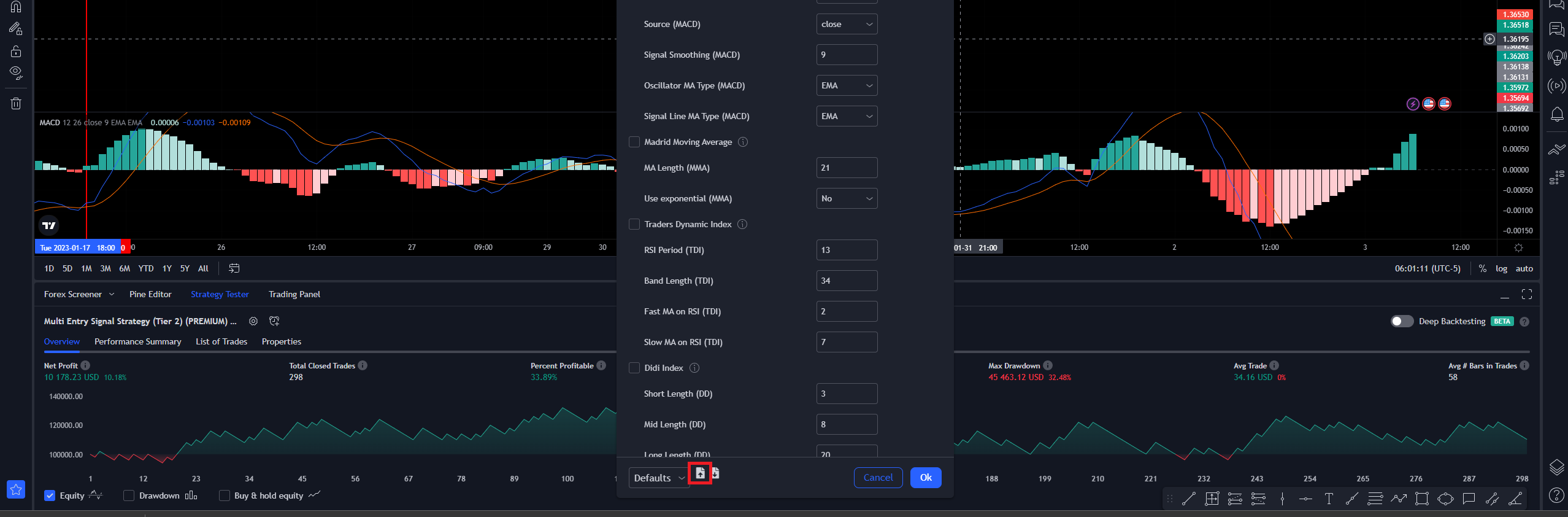
Choose the file you would like to import.
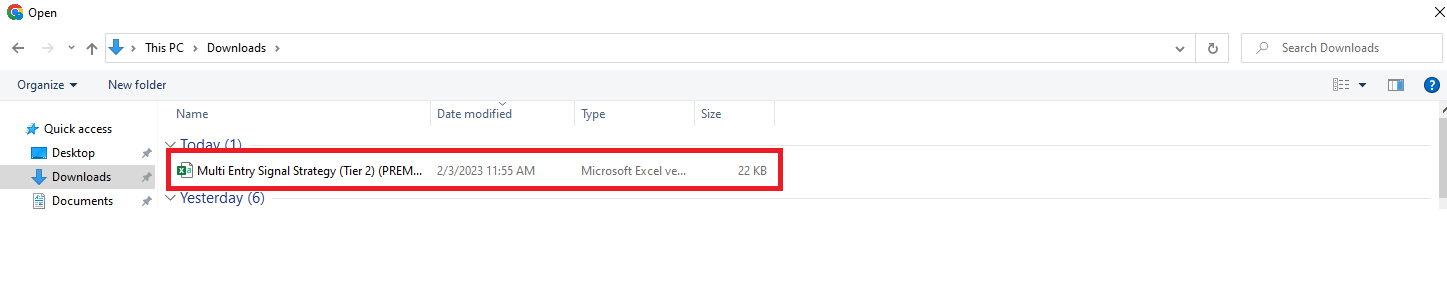
Wait until the import finishes.
Tip
Please be aware that if you don’t see the results you expected, that might happen because of the following issues:
- Check the timeframe, and trading pair
- Check the transaction fee setting, as it is not copied by the extension
- You might not have the same Tradingview plan as the one who exported, so you may see more or less data.
Confirm the backtest before using the settings
After importing, inspect the strategy Inputs individually and open Properties to set capital, order sizing, commission and slippage. Imported V1 inputs do not automatically make the Strategy Tester match the original report. Confirm the correct asset, exchange feed, timeframe, script version, test dates and trade count before using the configuration. For Premium V2 scripts, use the built-in preset selector in the optimization guide.